
Blueticked integrations
Turn orders, payments and bookings from your other systems into customer messages on WhatsApp, email or SMS.
Choose a receiving connection in Blueticked, copy its private address, then paste that address into the other system. Choose what should happen when an event arrives, test it, and turn it on.
- 1
Copy your address
Choose a receiving connection in Blueticked and copy its private address.
- 2
Paste it in
Paste the address into the other system, where the guided setup shows you.
- 3
Choose what happens
Pick the message an event starts, test it with your own contact, then turn it on.
Connect by pasting an address
Available today. The guided setup shows where to paste your address and, where supported, how to check the sender's signature.
WooCommerce
ShopPaste your Blueticked address into WooCommerce's webhook settings.
In WordPress: WooCommerce, Settings, Advanced, Webhooks.
An order arrives. Send the buyer an order confirmation.
Keep the address private.
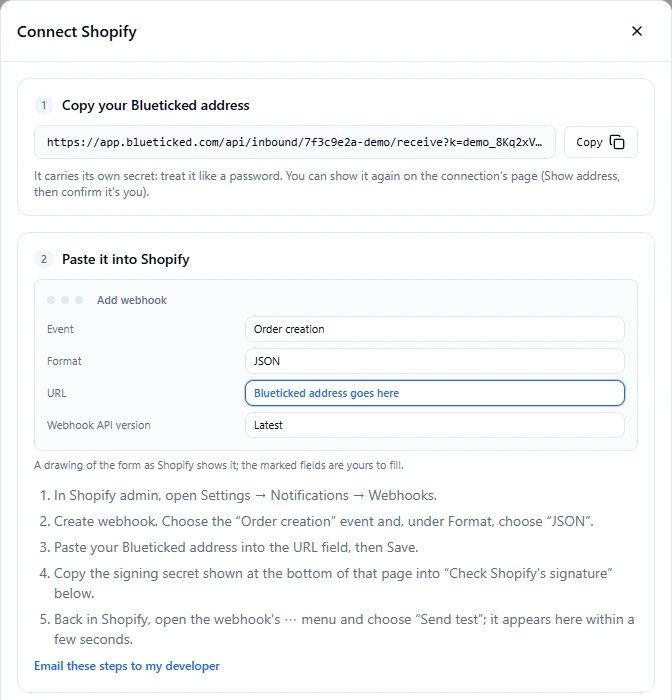
Shopify
ShopPaste your Blueticked address into Shopify's webhook settings.
In Shopify: Settings, Notifications, Webhooks.
An order is created. Send the customer an order update.
Keep the address private.
PayFast
PaymentsYour Blueticked address goes to PayFast as the notify URL, with each payment or as your default.
Send it as notify_url with each payment, or set it as your PayFast account's default notify URL.
A payment completes. Send the payer a confirmation.
Keep the address private.
Zapier or Make
AutomationPaste your Blueticked address into a Webhooks by Zapier or Make HTTP step.
In Zapier: Webhooks by Zapier, Custom Request. In Make: HTTP, Make a request.
Your chosen app sends an event. Start a customer message.
Keep the address private.
Website form
FormsPaste a ready form into your website; each answer lands in Blueticked.
In Blueticked: copy the ready form, then paste it into your website's page.
Someone fills in your form. Welcome them as a new contact.
This form key is meant to be public: other websites' browsers are refused, and request limits cap the rest.
Elementor
FormsAdd a Webhook action to your Elementor form and paste your Blueticked address.
In WordPress: edit the page with Elementor, Form widget, Actions After Submit, Webhook. Needs Elementor Pro.
A form is submitted. Welcome the new lead.
Keep the address private.
WPForms
FormsTurn on Webhooks in your WPForms form and paste your Blueticked address.
In WordPress: WPForms, your form, Settings, Webhooks. Needs the Webhooks addon (WPForms Elite).
A form is submitted. Welcome the new lead.
Keep the address private.
Gravity Forms
FormsAdd a webhook to your Gravity Forms form and paste your Blueticked address.
In WordPress: Forms, your form, Settings, Webhooks, Add New. Needs the Webhooks Add-On (Gravity Forms Elite).
A form is submitted. Welcome the new lead.
Keep the address private.
Google Forms
FormsPaste a ready script into your form's responses sheet; it posts each answer to Blueticked.
In Google Forms: Responses, link a sheet. In that sheet: Extensions, Apps Script.
Someone answers your Google Form. Welcome them as a new contact.
Keep the address private.
No Blueticked app in the Zapier or Make marketplace is required. Use their existing request step and include the customer's phone or email.
With your developer
Calendly
Your developer registers your Blueticked address with Calendly through its API. A Standard plan or higher is required. New bookings can then start a confirmation workflow.
Your own app or website
Your developer sends events to your Blueticked address, or uses the public API. Ask them to include the customer's phone or email and the details your message needs. For the public API, they create the contact first; the receiving address can find or create it.
Send information back to your systems
A developer can receive Blueticked events in another system, or connect a WhatsApp form or flow to your system's API. This is a separate sending connection, not a return trip built into a receiving connection.
The existing HubSpot contact setup can create contacts from WhatsApp form answers using a HubSpot private-app token. That is not the one-click connector.
One-click connections
Not available today. Signing in to these systems from Blueticked and keeping their records in sync is on the roadmap. No release date is promised.
HubSpot
On the roadmap
Xero
On the roadmap
Sage
On the roadmap
What to know before you connect
- Receiving an event does not opt a customer in. Consent and channel rules still apply.
- No automatic two-way sync: a receiving connection does not sign in to your other system and does not poll it for changes. A system that cannot send events needs a developer's bridge.
- An accepted event is not a promise that a message was delivered. Check Deliveries and What happened in the connection record.
- Each connection belongs to the business you selected. Test with your own contact before turning on customer messages.